SMM Panel Order Status Explained: Pending, Processing, Completed, Partial & Canceled
Every Order Has a Story. Understand Every Status.
From the moment an order is submitted to the final delivery update, understanding your SMM panel order status helps you make better decisions, avoid unnecessary duplicate orders and communicate more effectively with customers.

What Is an SMM Panel Order Status?
An SMM panel order status is an indicator that describes the current processing state of a social media marketing service order.
Whenever a customer submits an order for a service such as Instagram followers, Facebook likes, YouTube views, TikTok engagement or Telegram channel members, the order enters a processing workflow.
The panel records information about the order and communicates its progress through status labels. Depending on the provider and the platform's configuration, you may see labels such as Pending, Processing, In Progress, Completed, Partial, Canceled or other variations.
These labels are more than simple notifications. They help customers understand whether an order is waiting, actively being processed, fully delivered, partially delivered or unable to continue.
Order visibility
Understand what stage an order has reached without relying entirely on manual communication.
Financial clarity
Review charges, possible balance adjustments and order-related financial records.
Better decisions
Know when to wait, investigate a problem or contact customer support.
Important: Status names and their exact operational meanings can vary between SMM providers. Always use the relevant service description, provider rules and order details as the final reference.
All Major SMM Order Statuses at a Glance
Here is a practical overview of the most common order status labels used across SMM panel workflows.
Pending
The order has been recorded and is waiting for the next processing step.
Processing
The order is undergoing processing or provider-side handling.
In Progress
The provider reports that order delivery is underway.
Completed
The order has been marked as fully delivered by the system.
Partial
Only part of the requested quantity was delivered.
Canceled
The order was stopped or could not be delivered as requested.
Some panels use alternative spellings such as Cancelled or Complete. Others combine Processing and In Progress into one status. These naming differences do not necessarily indicate different service behavior.
How an SMM Panel Order Moves Through Its Lifecycle
An order normally moves through a sequence of operational steps. The exact sequence depends on the supplier, service type and order management system.
Submitted
Order information recorded
Processing
Provider handling
In Progress
Delivery underway
Completed
Marked as delivered
What happens at each stage?
Stage 1: Order submission
The customer selects a service and enters the required information, such as the target link, quantity and any service-specific parameters. The panel records the request and assigns an order reference.
Stage 2: Validation and processing
The system may validate the submitted information and send the order to a connected provider. Invalid parameters, service availability or provider-side issues can affect this stage.
Stage 3: Delivery
The provider begins processing the requested service. Depending on the service, delivery may occur gradually or through a scheduled drip-feed arrangement.
Stage 4: Final status
The system receives or calculates the final order state. An order may be marked Completed, Partial, Canceled or another provider-defined result.
A displayed status is a system-reported state. It should not be confused with an independent verification of audience quality, long-term retention or overall social media performance.
Explore What Each Order Status Actually Means
Select a status below to understand what it generally indicates and what action may be appropriate.
Order Status Explorer
Choose a status to view its explanation and recommended next step.
◷ Pending
Your order has been recorded and is waiting for further processing. Review the service's expected start time and keep the original order details unchanged.
Pending SMM Order: Why Is My Order Still Waiting?
A Pending order generally means the system has received the order but has not yet moved it into active delivery.
This does not automatically mean something is wrong. An order can remain pending while the system validates the request, waits for an available provider or handles a queue of incoming orders.
Common reasons for a pending order
Processing queue
The order may be waiting for the provider to accept or start processing it.
Provider workload
The supplier may be handling other orders or experiencing operational delays.
Service conditions
The service may have a particular start-time expectation or manual processing requirement.
What should you do when an order is pending?
- Find the original order in your order history.
- Read the selected service description again.
- Check the stated start-time information, if available.
- Confirm that the target link has not changed or become unavailable.
- Contact support if the delay exceeds the relevant service expectations.
Avoid duplicate orders. Placing another order while the original is still pending can create duplicate charges or overlapping delivery if the original order later starts.
Processing Status: What Happens Behind the Scenes?
Processing usually indicates that an order is undergoing a provider-side or platform-side operation. It may represent an intermediate stage between submission and active delivery.
Depending on the SMM panel, Processing and In Progress may be used separately or interchangeably. Do not assume that one label always represents a faster delivery stage than the other.
What may happen during processing?
- The order is forwarded to the connected supplier.
- The provider checks service availability.
- The target link and service parameters are processed.
- The order is added to a delivery queue.
- The provider prepares the order for execution.
These are general examples of possible workflow operations, not a guarantee that every provider performs each step in this exact order.
Should you cancel a processing order?
Not automatically. First check whether the selected service supports cancellation and whether the panel provides a valid cancellation option. A cancellation request may not succeed once delivery has started or the provider has accepted the order.
In Progress: Understanding Active SMM Order Delivery
In Progress generally means that the provider reports the order as actively being delivered.
Some services deliver the requested quantity quickly, while others may distribute delivery over a longer period. The actual delivery behavior depends on the service specifications and provider conditions.
Why can an in-progress order take time?
- The requested quantity may be relatively large.
- The selected service may use gradual delivery.
- The provider may have a delivery schedule.
- Temporary platform or provider-side conditions may affect progress.
- The service may require a specific processing window.
What should customers avoid?
Do not repeatedly submit the same request simply because the order is still In Progress. Also avoid changing the target link, username or relevant account settings while delivery is underway, unless the provider explicitly instructs you otherwise.
Practical tip: Compare the current order status with the original service description. An order that takes longer than another service is not automatically defective.
How to Read an Order Tracking Dashboard
A well-organized order history helps customers understand what happened to each request. Rather than relying on a single status label, review the entire order record.
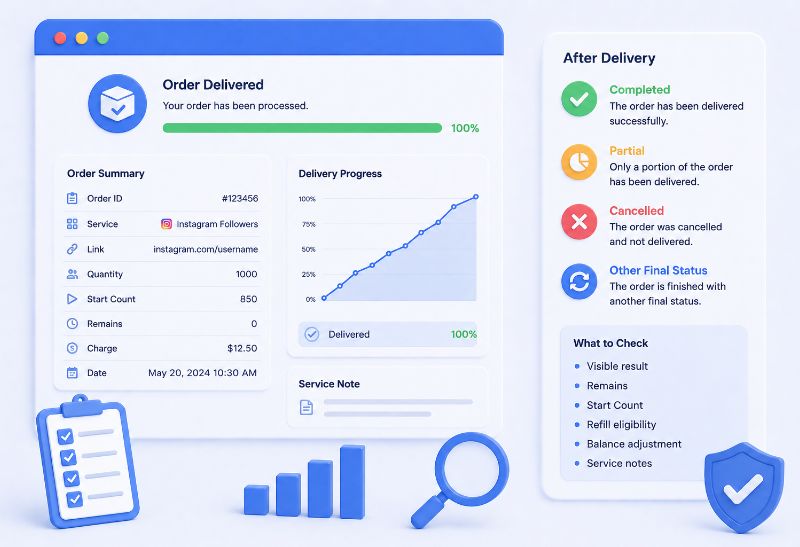
Important order information to understand
| Field | Meaning | Why it matters |
|---|---|---|
| Order ID | Unique order reference | Identifies the exact order during support requests. |
| Service | Name of the purchased service | Identifies what was ordered. |
| Link | Target URL or profile | Helps verify the intended destination. |
| Quantity | Requested service amount | Shows the original order size. |
| Start Count | Recorded starting metric, where supported | Provides a reference for delivery calculations. |
| Remains | Quantity reported as remaining | Helps understand the reported unfinished amount. |
| Charge | Order cost | Helps reconcile the financial record. |
| Status | Current or final processing state | Shows the provider-reported order result. |
Completed SMM Order: What Does Complete Actually Mean?
A Completed order means that the panel or connected provider has marked the requested order quantity as delivered in full.
It is an important final status because it indicates that the order's processing workflow has reached its completion point.
What should you check after completion?
- Confirm that the correct order ID is marked Completed.
- Review the original service and quantity.
- Check the target account, profile or post.
- Compare available starting and remaining information.
- Review the service's refill policy if a later drop occurs.
Does Completed mean the result can never change?
No. A Completed status describes the recorded delivery outcome at that point in the workflow. It does not guarantee permanent retention, future engagement or a specific business result.
Social media platforms can remove accounts, adjust visible metrics or change how engagement is displayed. Organic changes can also affect the target metric after an order finishes.
Remember: Completed and Lifetime Refill are not the same thing. A completed order may have a refill policy, a limited refill period or no refill coverage at all. Check the individual service terms.
Partial SMM Order: What Happens When Only Part Is Delivered?
A Partial order means that the requested quantity was not delivered in full and the system recorded a partial fulfillment result.
For example, imagine a customer requests 1,000 units. The provider reports that 750 units were delivered, while 250 remain undelivered.
Illustrative partial order breakdown
Requested quantity: 1,000 units
Why do partial orders happen?
- The provider cannot complete the full requested quantity.
- The target becomes unavailable during delivery.
- Service availability changes.
- The provider stops the order before reaching its full quantity.
- Other service-specific limitations affect fulfillment.
How are partial refunds calculated?
Where a provider's policy supports proportional refunds, the undelivered portion may be credited back according to the original charge and the provider's calculation method.
Illustrative example: If an order costs $10 and 25% of its quantity is undelivered, a proportional refund would be $2.50. Actual refund calculations and credit destinations depend on the provider's rules.
What should you do with a partial order?
- Check the final delivered quantity.
- Review the reported remaining amount.
- Inspect the order's financial transaction or balance history.
- Check whether an adjustment or refund was recorded.
- Contact support if the amount does not match the provider's stated policy.
Do not automatically submit another full-quantity order. Calculate the actual shortfall first to avoid ordering more than intended.
Canceled SMM Order: Why Can an Order Be Stopped?
A Canceled or Cancelled status generally means that an order was stopped or could not proceed to its intended completion.
However, the reason for cancellation and its financial consequences depend on the provider's rules and the point at which the order stopped.
Common reasons an order may be canceled
Incorrect target link
The submitted URL may be invalid, unavailable or unsuitable for the selected service.
Account restrictions
Privacy settings or other target restrictions may prevent the service from proceeding.
Service interruption
The provider may be unable to continue processing the requested service.
What happens to the money?
Some systems automatically credit the eligible unused charge to the panel balance when an order is canceled. Other systems may require additional review or follow a different refund procedure.
Always check the transaction history and the specific panel's refund terms. A canceled status alone does not establish the exact refund amount or destination.
Start Count and Remains: Two Important Order Fields
Start Count and Remains are common order-tracking fields that help explain how an order has progressed.
What is Start Count?
Start Count generally refers to the target metric recorded when the provider begins processing the order. For a follower service, it may represent the recorded follower count. For another service, it may refer to a different target metric.
What is Remains?
Remains generally indicates how much of the requested quantity is still outstanding according to the provider's tracking information.
Illustrative calculation
| Field | Example value | Explanation |
|---|---|---|
| Requested quantity | 1,000 | Original order quantity |
| Start Count | 5,000 | Recorded starting target metric |
| Remains | 300 | Reported quantity still outstanding |
| Reported delivered | 700 | 1,000 minus 300 |
| Illustrative final target | 5,700 | 5,000 plus 700 |
This is a simplified illustration. Actual displayed counts can differ because the target metric may change organically or be updated by the platform. Remains should be interpreted according to the provider's tracking method.
How Drip-Feed Can Affect Order Progress
Drip-feed is an order feature that divides a requested quantity into multiple delivery runs over time, where supported by the selected service.
Instead of submitting one large delivery request, the customer can configure smaller quantities per run and a number of runs.
Illustrative drip-feed schedule
| Run | Quantity | Schedule |
|---|---|---|
| Run 01 | 100 | First delivery |
| Run 02 | 100 | Next scheduled run |
| Run 03 | 100 | Next scheduled run |
| Run 04 | 100 | Next scheduled run |
| Run 05 | 100 | Final scheduled run |
Total illustrative quantity: 500 units across five runs.
A drip-feed order may remain active across several scheduled runs. Its displayed status may depend on how the panel tracks the parent order and its individual deliveries.
For this reason, customers should check the configured quantity, number of runs and interval before treating an ongoing drip-feed order as delayed.
Read the SMMBold blog for additional SMM panel educational resources and service guides.
Completed Order vs Refill: Understand the Difference
Order completion and refill eligibility describe different aspects of a service.
Completed means the provider has marked the original order as delivered. Refill refers to a separate service condition that may allow eligible drops to be addressed during a stated coverage period.
| Term | Meaning | What to verify |
|---|---|---|
| Completed | Original order marked delivered | Delivered quantity and final status |
| Refill | Eligible replacement process | Coverage period and eligibility |
| No Refill | No refill coverage is provided | Original service terms |
| Refill Pending | Where supported, a refill request is waiting | Request status and support instructions |
| Refill Completed | Where supported, refill processing is marked finished | Reported refill result |
Before requesting a refill
- Check whether the original service includes refill coverage.
- Review the exact coverage period.
- Confirm that the original order is eligible.
- Read any minimum-drop or cooldown conditions.
- Use the correct order reference when contacting support.
Refill coverage is service-specific. Never assume that every Completed order automatically qualifies for replacement delivery.
Common SMM Order Problems and How to Investigate Them
Problem 1: Order remains Pending
Possible explanation: The provider has not started processing, or the service is waiting in a queue.
Recommended approach: Check the service start-time information, preserve the order ID and contact support if the stated processing expectation has passed.
Problem 2: Order remains In Progress
Possible explanation: The provider reports active delivery, but the full quantity has not yet been completed.
Recommended approach: Check the quantity, Remains field, delivery conditions and any drip-feed configuration.
Problem 3: Order shows Completed but the visible count seems different
Possible explanation: The provider's completion record and the target platform's currently visible metric may not match exactly.
Recommended approach: Check the original order details, recorded Start Count, service conditions and any concurrent activity on the target.
Problem 4: Order becomes Partial
Possible explanation: The provider stopped delivery before the full requested quantity was completed.
Recommended approach: Check the final delivered amount and the corresponding balance adjustment under the provider's policy.
Problem 5: Order becomes Canceled
Possible explanation: The order could not continue or was stopped by the system or provider.
Recommended approach: Review the target link, service requirements, final status and financial transaction before placing another order.
Problem 6: The displayed status does not change
Possible explanation: The panel may not have received a fresh provider update, or the order may require further investigation.
Recommended approach: Refresh the order history if appropriate, review the provider's expected processing window and submit an order-specific support request if needed.
How to Contact SMM Panel Support About an Order
A good support request should help the support team identify the exact order and understand the problem without needing several rounds of clarification.
Information to include
Example of a clear support message
SUPPORT REQUEST EXAMPLE
Subject: Order Status Investigation
Hello Support Team,
I would like to request an update regarding my order.
Order ID: [Your Order ID]
Service ID: [Service ID]
Current Status: [Current Status]
Quantity: [Requested Quantity]
Could you please review the order and let me know whether any action is required?
Thank you.
Avoid sending only a screenshot without an order reference. The order ID is generally the most useful starting point for locating a specific transaction.
Managing Multiple SMM Orders Without Confusion
Resellers and agencies may process many orders across different platforms and customers. A structured order management system helps reduce mistakes and makes customer communication more consistent.
Use an order tracking register
| Order | Platform | Status | Next action |
|---|---|---|---|
| #1001 | Pending | Review start-time expectation | |
| #1002 | YouTube | In Progress | Monitor delivery |
| #1003 | Telegram | Completed | Review final order record |
| #1004 | TikTok | Partial | Check delivered quantity and adjustment |
The table above is illustrative sample data, not live SMMBold order information.
Build a consistent support process
Use the order ID rather than relying on customer names or service descriptions alone.
Never combine the status of several orders into one general update.
Review charges, partial adjustments and other recorded transactions.
Explain whether the order is waiting, active, completed, partial or canceled.
Keep the support response and final action associated with the correct order.
How SMM API Integration Helps With Order Tracking
When an SMM reseller manages a large catalogue or a high number of orders, manually checking every order becomes inefficient.
Where supported by the connected provider, API integration can help a website retrieve order information and synchronize status updates with its own customer dashboard.

Typical automated order tracking workflow
The reseller website validates the request and stores its internal order reference.
The server communicates with the connected SMM provider using its documented request format.
The application stores the provider's order reference and relevant response data.
The application retrieves updates according to the provider's supported API operations and limits.
The website displays the latest recorded information to the customer.
Important API tracking considerations
- Store both internal and provider order IDs.
- Validate API responses before updating order records.
- Use appropriate request timeouts.
- Respect provider rate limits.
- Keep historical order updates where appropriate.
- Prevent duplicate order submission during temporary network failures.
- Protect API credentials on the server side.
Developers can review the SMMBold API documentation for the available integration information.
Important Security Practices When Managing SMM Orders
Order management should be handled with attention to account security and customer privacy.
Protect credentials
Never share account passwords or private API credentials through public messages.
Verify links
Double-check the target URL and service requirements before submitting an order.
Preserve records
Keep relevant order IDs, payment records and support communications.
Use services responsibly and review the relevant social media platform policies. A service's Completed status does not guarantee compliance with third-party platform rules or permanent account outcomes.
20 Practical Tips for Better SMM Order Management
Frequently Asked Questions About SMM Panel Order Status
What does Pending mean in an SMM panel?
Pending generally means the order has been recorded and is waiting for further processing. It does not automatically mean the order has failed.
What is the difference between Processing and In Progress?
Processing may describe provider-side handling or an intermediate stage, while In Progress generally indicates active delivery. However, some providers use these labels interchangeably.
What does Completed mean in an SMM panel?
Completed means the provider or panel has marked the requested order as fully delivered. It does not guarantee permanent retention or future engagement.
What does Partial mean in an SMM order?
Partial means that only part of the requested quantity was delivered. Check the final delivered quantity and the provider's policy for any applicable balance adjustment.
Does a canceled SMM order get refunded?
Refund treatment depends on the provider's rules. Some systems credit eligible unused charges to the panel balance, while others may require additional review. Check your transaction history.
Why is my SMM order still Pending?
It may be waiting in a provider queue, undergoing validation or affected by service availability. Check the service's expected start time before contacting support.
Can I place another order while the first one is In Progress?
It is generally better to avoid duplicate orders on the same target and service until the first order is resolved. Overlapping requests can complicate delivery tracking.
What is Start Count in an SMM panel?
Start Count generally refers to the target metric recorded when the provider begins an order. Its exact meaning depends on the selected service.
What does Remains mean?
Remains generally represents the amount of the requested order quantity that is still outstanding according to the provider's tracking information.
Can a Completed order experience a drop later?
Yes. A Completed status records the order's delivery result at that time. Later changes in social platform metrics may occur. Check the original service's refill conditions if applicable.
How do I request help with an order?
Provide the order ID, service name, current status and a clear description of the issue. Include a relevant screenshot when it helps explain the problem.
Can I track several SMM orders together?
Many SMM panels provide an order history where multiple orders can be reviewed. Check each order individually because different orders may have different statuses and outcomes.
What happens to a drip-feed order?
A drip-feed order distributes delivery into multiple scheduled runs where supported. Its status may remain active while the configured delivery schedule is being processed.
Does every SMM panel use the same order status names?
No. Status labels and their exact meanings can vary across providers and panel configurations. Read the relevant provider documentation.
Where can I find my SMMBold order history?
Sign in to your SMMBold account and use the available order management and order history functions to review your recorded orders and their statuses.
Better Order Management Starts With Clear Information.
Explore social media service categories, review service conditions and manage your orders through a structured SMM platform. Whether you are an individual customer, agency or reseller, understanding order statuses makes the ordering process easier to manage.
Explore All Services ↗ Visit Public Order Page ↗ Explore API Documentation ↗